Program & audience
Program, sessions & speakers
Build the schedule with sessions and speakers — with or without a CFP.
The program is your schedule of sessions. Speakers and sessions are independent of the paper pipeline, so a registration-only event (no CFP) can have a full program too.
If you don't see this tab in the sidebar, enable its area under Settings → Event sections.
Speakers
There are two ways a speaker gets onto the program, and they meet in the same roster entry.
You type their card. Under Speakers, add a speaker directly with a name, bio, photo, affiliation, and links. When AI is enabled, Rewrite with AI polishes a bio. This is the right route for an external keynote who will never sign in.
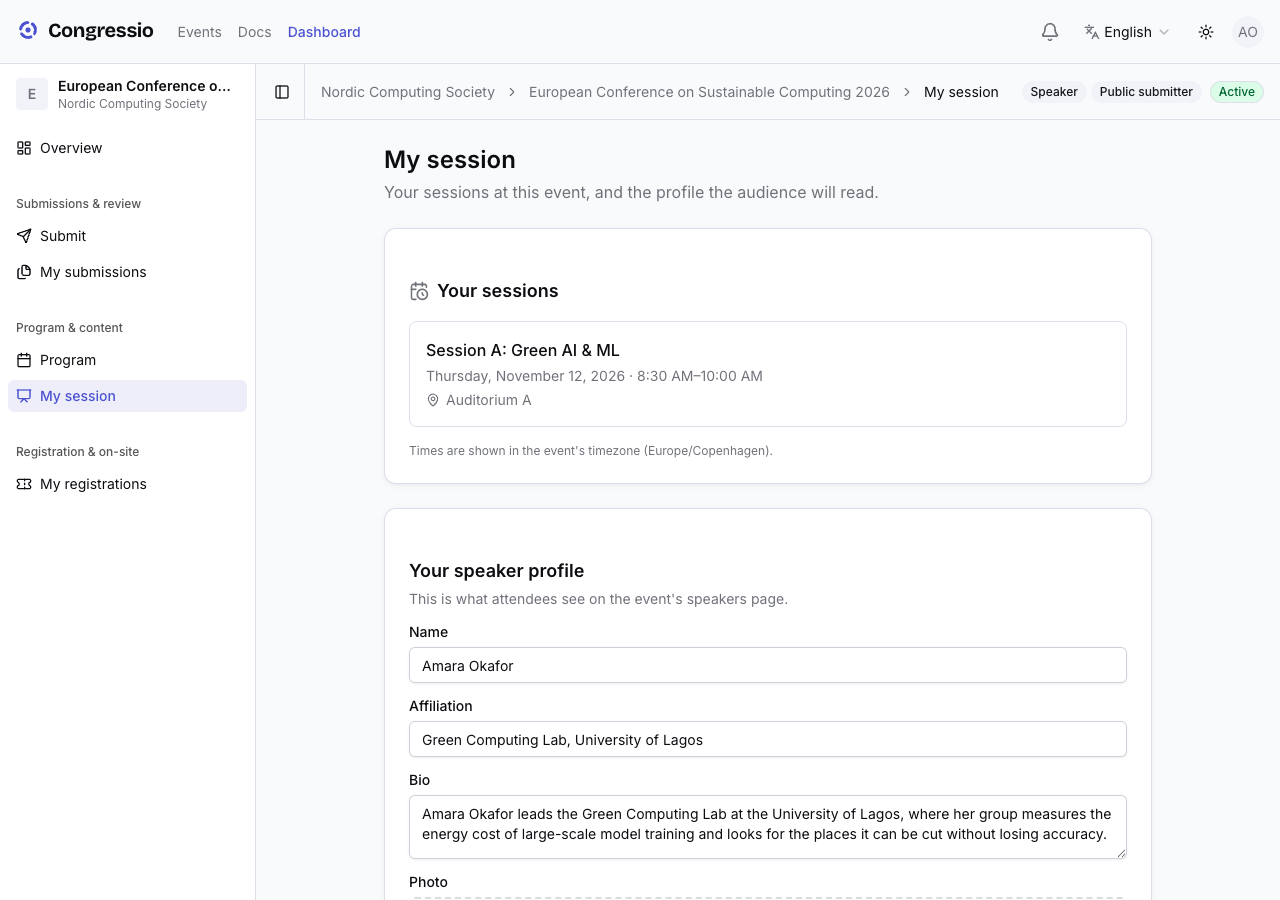
They fill it in themselves. Invite them under Team with the Speaker role and they get their own My session screen — the sessions they're on, and their public profile, editable by them. That saves chasing people by email for a bio and a photo.
The two meet through the speaker's Email field on the roster. It's optional, but when it matches the address you invited, accepting the invitation claims the entry you already typed instead of creating a second profile on the public page. Fill it in whenever you invite someone you've also listed.
Session assignment stays with you: a speaker can edit their own bio, photo, affiliation, and links, but not which sessions they appear in.
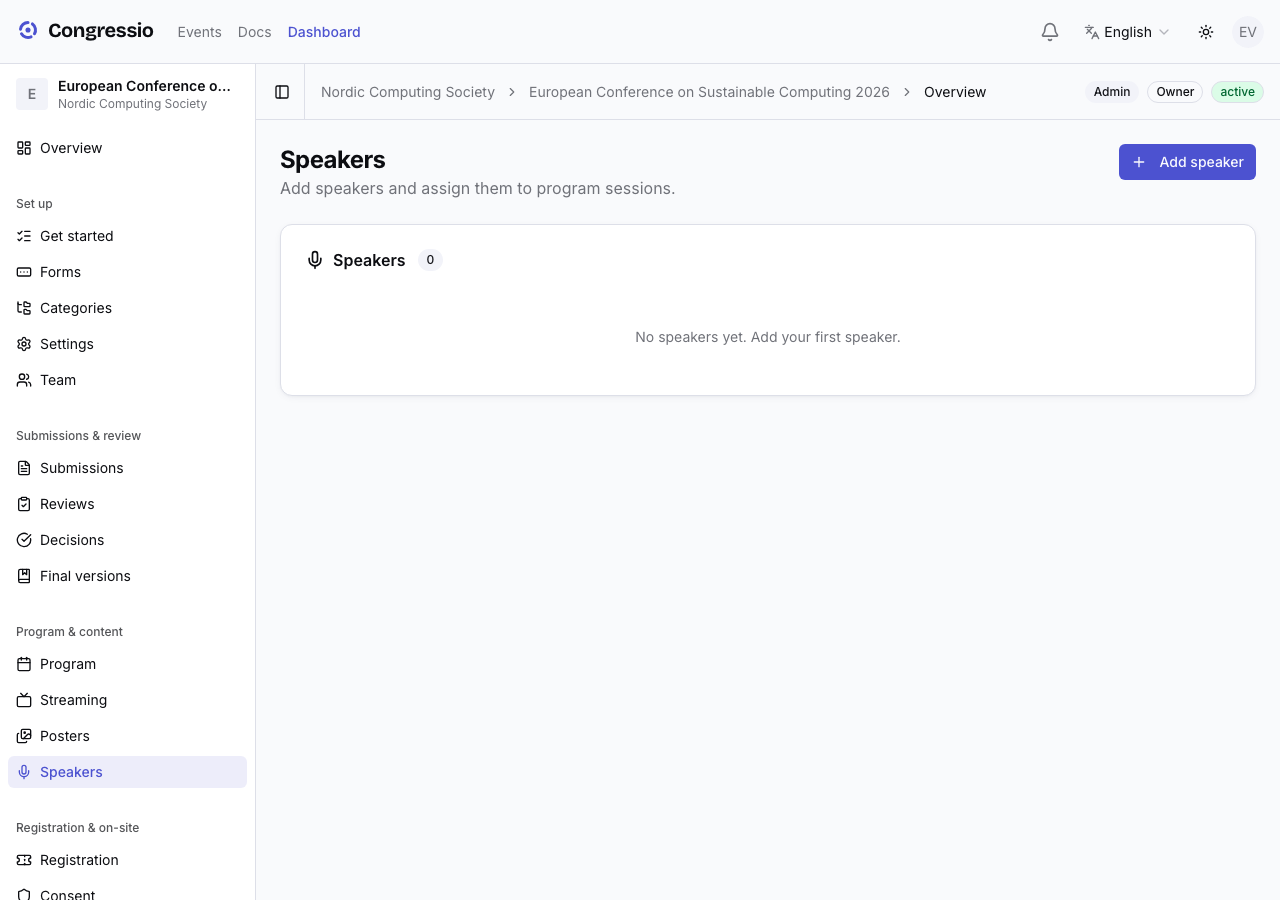
The Speakers page is also where structured speaker-to-session attachment happens: each speaker's editor has a Sessions multi-select ("Select the program sessions this speaker appears in") that links the speaker to program sessions.
Sessions
Under Program, create session slots with a title, time, and room. A session can:
- Be a free-form session (talk, panel, break) with a manually entered title/speaker, or
- Link to an accepted submission (when you ran a CFP), pulling its title and authors.
The slot editor's Speaker Name field is free text — a display label on the schedule, separate from the structured speaker links made on the Speakers page. Organize multiple tracks/rooms in parallel.
Sessions sit on a time grid you can edit directly: drag a session to reschedule it (it snaps to five-minute steps, and the new time previews as you drag), or drag its bottom edge to change the end time. A single click still opens the full editor.
Rooms & tracks
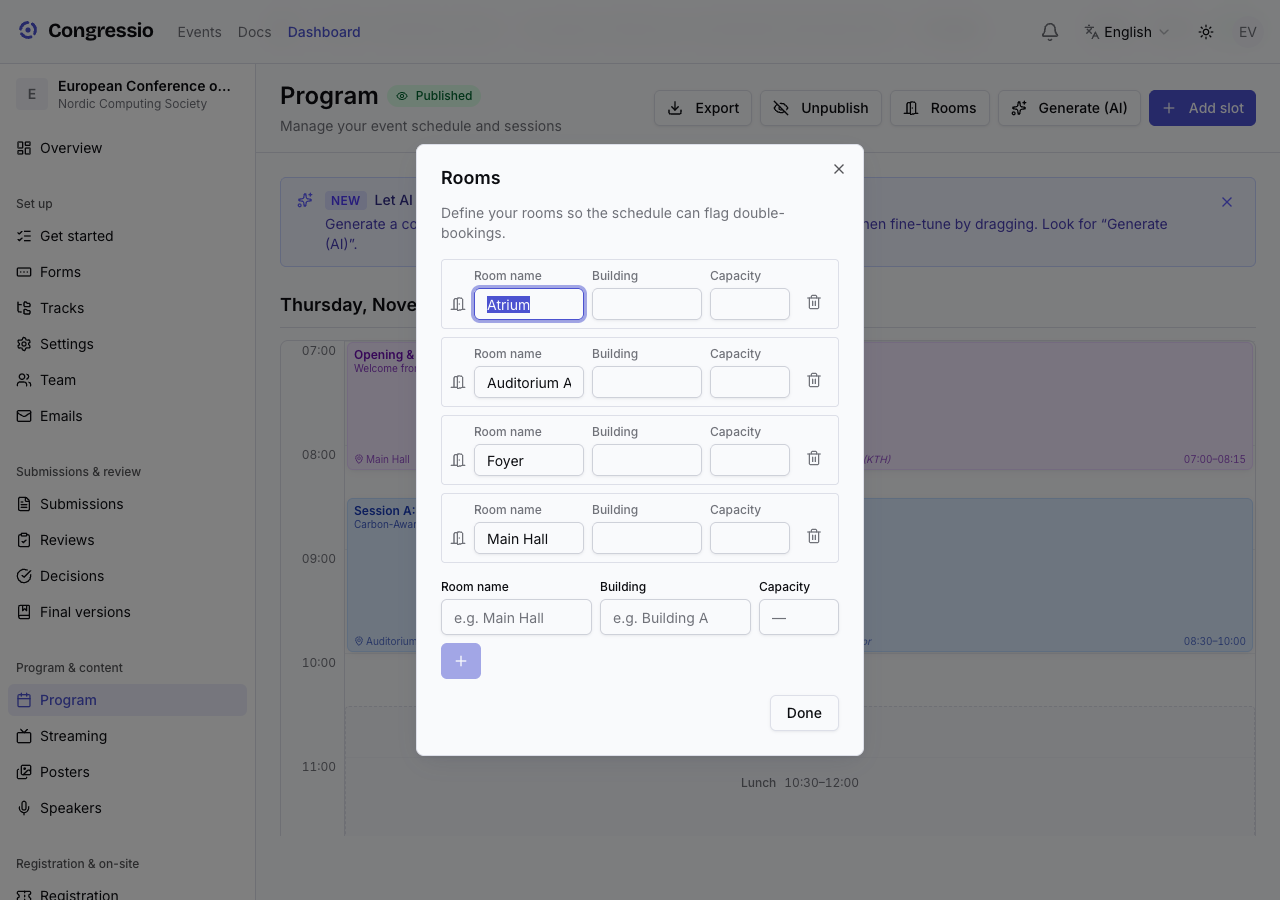
Click Rooms to define your venue's rooms once (with an optional capacity). Each session can then be assigned to a room from a dropdown instead of retyping the name — and to a track (one of your event's tracks), which shows as a coloured dot on the schedule.
Rooms are optional: if you don't define any, the room field stays a free-text box, so a small event needn't set them up.
Conflict detection
Once sessions overlap in time, Congressio watches for two kinds of clash and flags them automatically:
- Double-booked room — two sessions in the same room at the same time.
- Speaker in two places — the same speaker scheduled in overlapping sessions. This check compares the slots' free-text Speaker Name values (case-insensitively), not the structured speaker assignments — so keep the spelling consistent if you rely on it.
Clashing sessions get an amber warning ring and icon on the grid, and a banner at the top counts the conflicts. Nothing is blocked — the warnings just make problems obvious before you publish.
Generate the schedule with AI
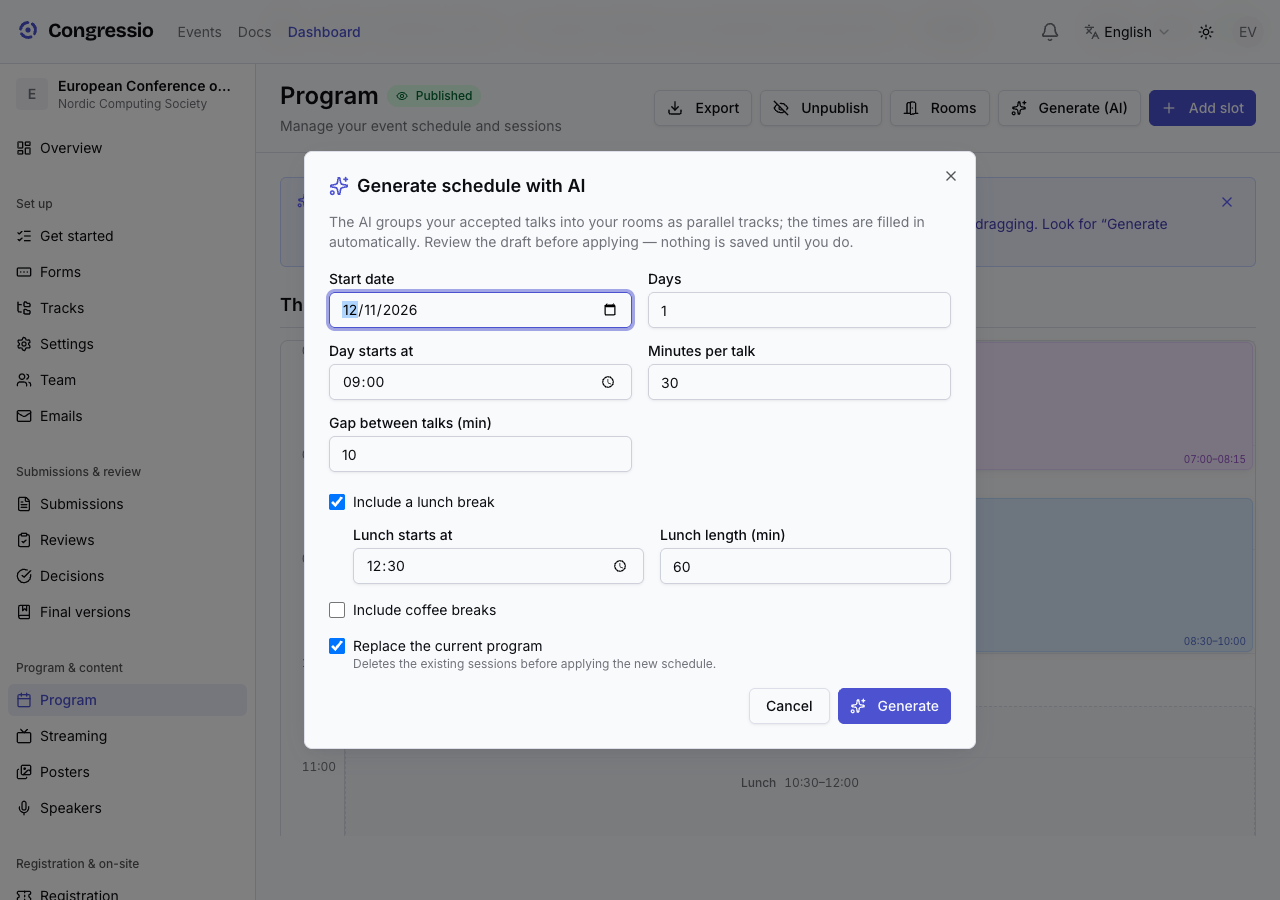
Generate (AI) drafts a whole parallel-track program in one step. Tell it the start date, how many days, the day's start time, how long a talk runs, and which breaks to reserve — lunch and coffee breaks (mid-morning and mid-afternoon, one shared length); the AI groups your accepted talks into your rooms by track and theme, and the times are filled in for you.
It's a draft you review — the dialog previews every session with the AI's grouping rationale before anything is saved. Apply it to add the sessions (optionally replacing the current program), then fine-tune by dragging. The button appears whenever AI is enabled for your organization; if you run it without any rooms defined or any accepted submissions yet, it tells you what's missing.
Breaks are created as real blocks on the grid rather than left as gaps, so nothing on the schedule is unexplained empty time — and you can drag or resize them like any other session.
Publishing the program
The program has its own publish state — build it privately, then publish when it's ready for attendees. Published sessions appear on the public event page.
Live & on-site
Sessions support extras like Q&A, polls, gated video streams (by ticket tier), materials, and feedback — the last of which powers the feedback digest.
Related: Sponsors · Feedback · Registration