Setting up your conference
Flyer generator
Create social visuals, a poster, and an event image from a template — no design tool needed.
Under Settings → Flyer, event admins can turn the event's own information into a shareable visual: an Instagram square, a LinkedIn share image, or a portrait poster — plus a text-free variant to use as the event's cover image. Everything is rendered from your choices on Congressio's side; there is nothing to install and no design tool to learn.
A wizard walks you through four steps: Content → Template → Edit → Finish. Your work saves automatically as you go, so you can leave and come back — reopening the tab drops you straight into the editor with your saved flyer.
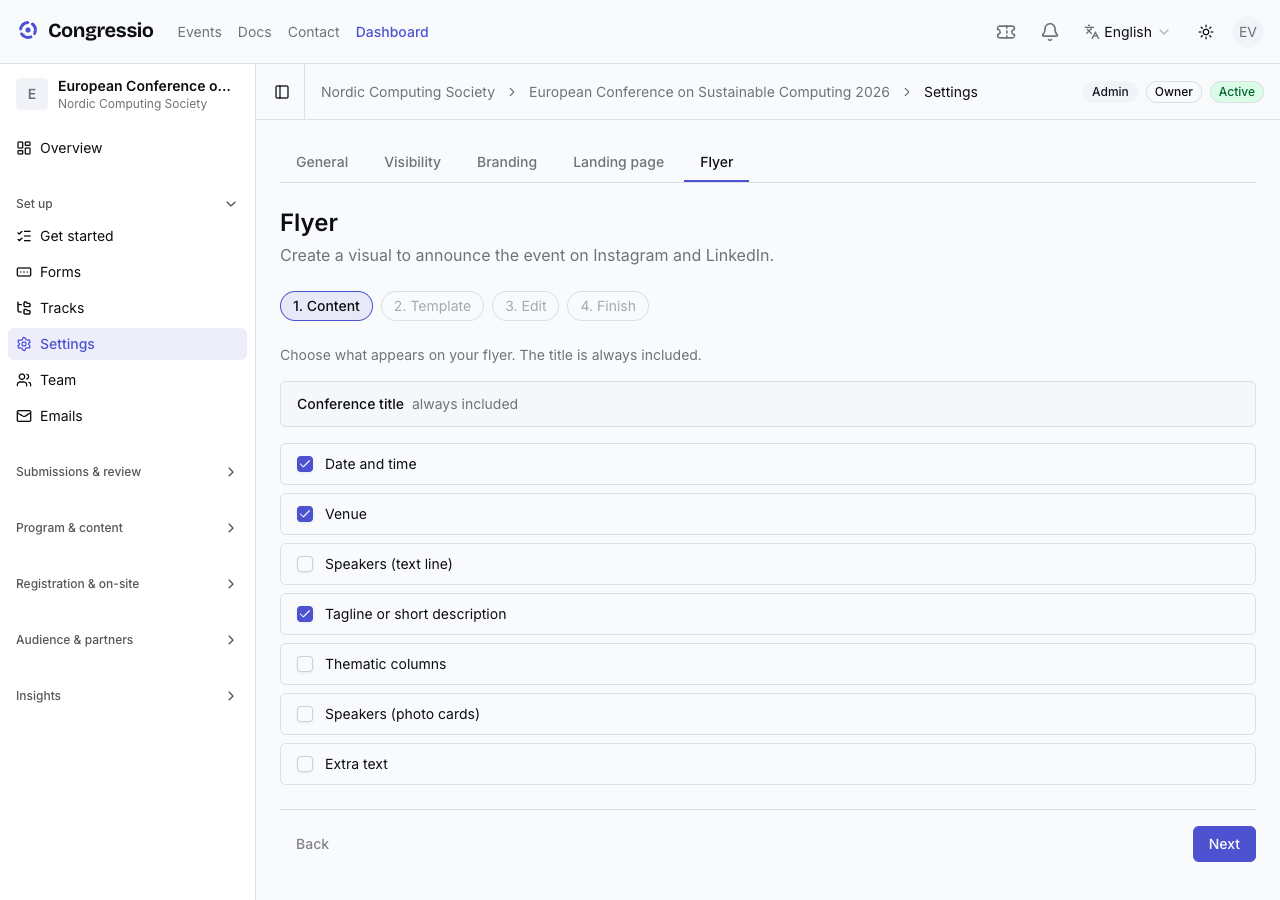
1 — Content
Pick what appears on the flyer. The conference title is always included; everything else is optional:
- Date and time and Venue — pre-filled from the event's settings.
- Speakers — a text line, and/or speaker photo cards: add people right in the wizard (name, optional role, optional photo — as many as fit the design, up to 8).
- Tagline — a short description, pre-filled from the event's public description.
- Thematic columns — up to three short heading + text blocks (poster templates); how many columns you get depends on the chosen template.
- Extra text — a free text block you can place anywhere.
2 — Template
Choose from 20 designs — Aurora, Midnight, Paper, Stage, Skyline, and more. Only templates that fit your chosen content are offered, and each thumbnail is previewed with your event's own texts and primary color, so what you pick is what you get.
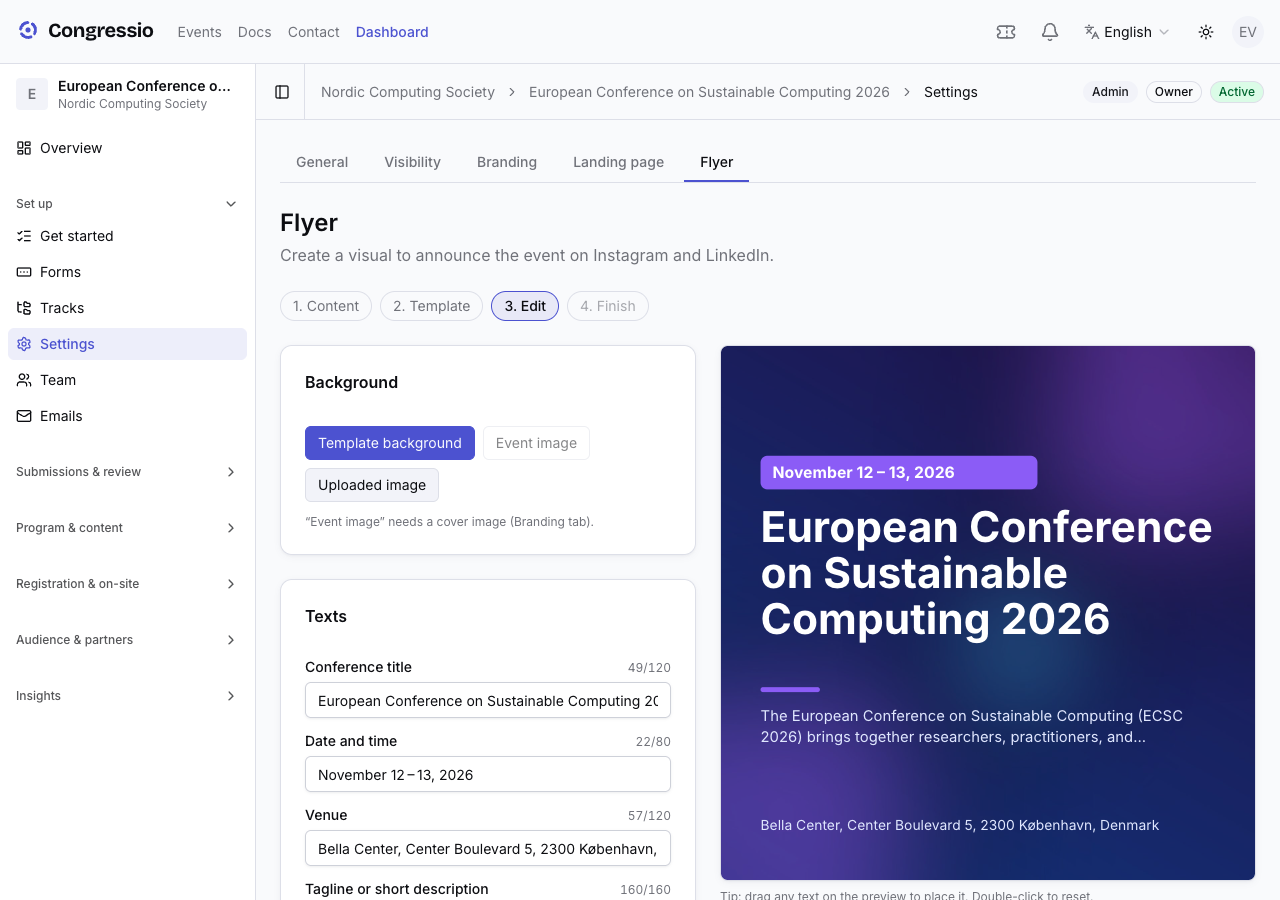
3 — Edit
The editor shows a live preview that is pixel-identical to the final image — same layout, same fonts, only scaled down.
- Texts — every line is editable, with a character counter. Dates and venue are pre-filled from the event (in your language); Reset from event replaces the texts with the event's current information at any time, keeping your format, template, and background.
- Background — the template's artwork, the event's cover image (from the Branding tab), or an uploaded photo (JPG, PNG, or WebP, up to 5 MB).
- Placement — drag any text block directly on the preview to reposition it; double-click a block to send it back to its template position.
Style — make the flyer your own:
- Font — choose among six typefaces (Inter, Montserrat, Oswald, Nunito, Playfair Display, Lora); the preview and the downloaded image use exactly the same one.
- Text colour — pick a swatch (your event's accent, white, black) or any colour; Automatic returns to the template's colours. Text sitting on the template's coloured blocks always stays readable. If a colour is hard to read on the background, a warning names the affected texts and Fix contrast picks the nearest readable shade — the warning never blocks the download.
- Foreground image — add a partner logo or a badge above the background (JPG, PNG with transparency, or WebP, up to 5 MB). Drag it on the preview and resize it from its corner; each format keeps its own position. It does not appear on the event image.
- Background zoom — with the event's cover or an uploaded photo as background, zoom in (100–300 %) and use Reframe the photo to drag the visible part. Reset framing returns to the full, centred photo. The event image reuses the framing of the format you are editing.
4 — Finish
Pick an output and download the PNG:
- Instagram — 1080 × 1080 square post.
- LinkedIn — 1200 × 627 link/share image.
- Poster — 1080 × 1527 portrait (ISO-A ratio), ready for print or a venue screen.
Use as event image generates a text-free landscape variant — the flyer's background, veil, and logo without the text — and sets it as the event's cover image, shown on the event card in the directory and the dashboard. It replaces the current cover image (you'll be asked to confirm).
Related: Branding & the public event page · Program & speakers · Events, settings & publishing